
Dope Capybara · · updated
How to Restore Old Photos on Your Phone (Scratches, Color)
Repair scratches, fix fading and add color to old family photos on Android. Most of the result comes from a clean print and a good scan, then an app handles the rest. What AI restoration can and cannot bring back.
Somewhere in a drawer there is a shoebox of prints that have gone orange, pale or scratched. To restore an old photo on your phone, scan it carefully, keep that scan untouched, then fix fading, scratches and color on a copy. The editing is the easy part. What decides the result is the scan you start from, so most of this guide is about getting that right.
If you already have a scan, jump to restoring in the Zuriva app or get it on Google Play.
Step 1: Handle and clean the print
Old prints are fragile. The US National Archives recommends clean nitrile or cotton gloves for handling photographs, because oils from your skin can degrade the image over time, and holding them by the edges.
For dust, their advice is a clean, soft brush used lightly, or a hand-squeezed puffer blower. They specifically say to avoid canned air, because the jet is strong and the propellant can damage the surface.
Leave a print alone if it is torn, if the image layer is cracked or lifting, or if it is the only photo of a great-grandparent. The Archives’ advice for those is to consult a photograph conservator before doing anything to them. You can still photograph it where it lies, without pressing it flat.
Take loose prints out of frames and sleeves if they slide out easily. Leave photos that are attached to album pages where they are and copy them in place.
Step 2: Scan it well
You have two good options.
A flatbed scanner
A flatbed gives the most faithful copy: even light, no glare, no perspective distortion. Clean the glass first, because every speck on it ends up on every scan.
For resolution, the Library of Congress’s personal archiving guide suggests 300 dpi for standard 4×6 and 5×7 prints, and 400 or 600 dpi if you might enlarge them to 8×10 or bigger. Tiny prints, like old wallet photos, fall into that second group, since you will almost certainly want to view them larger than they are.
A phone scanning app
If you have no scanner, a phone app built for prints beats the regular camera. Google’s PhotoScan is a good example. It asks you to take one shot, then move the phone over four dots so it captures the print from slightly different angles. It combines those frames to remove glare, which is the main problem with photographing glossy paper.
Photos often come with paper: letters, album captions, receipts in the same box. A document scanner such as Honest PDF Scanner straightens those pages and can make them searchable, though it is built for documents, not glossy prints.
Google’s own tips for PhotoScan are worth following for any phone scan:
- Put the print on a flat surface with a background that contrasts with it.
- Hold the phone parallel to the print, without tilting.
- Match the phone’s orientation to the photo’s.
- Avoid very bright conditions, and try the flash if glare or shadows persist.
With a plain camera app, shoot near a window in indirect daylight, turn off the flash, and keep the phone directly above the print. Then crop.
Step 3: Keep the original scan
Do this before you edit anything. Save the untouched scan and never overwrite it. Every restoration is an interpretation, and one day you or a better tool will want to start again from the real thing.
The Library of Congress guide also recommends keeping at least two copies of your collection in different places, for example your computer plus a portable drive or cloud storage. If something happens to one place, the other copy survives.
What software can fix, and what it can’t
Software can correct some damage. Missing detail is different: anything that was never captured has to be guessed.
| Problem | Can software help? |
|---|---|
| Faded, washed-out print | Yes, usually very well. The information is still there, just compressed into a narrow range. |
| Colour cast (orange, magenta, green) | Yes, mostly. Colour balance can be pulled back towards neutral. |
| Dust specks and small scratches | Often. Small marks surrounded by clean detail are easy to fill. |
| Slight softness | Somewhat. Sharpening improves how edges look. |
| Heavy blur or missed focus | Not reliably. Detail that was never recorded can’t be recovered. |
| Torn-off corners, water damage, missing faces | Only by invention. Anything filled in is a guess. |
| Black and white to colour | Only as an interpretation. The software predicts colours; it doesn’t know them. |
The top half of that table is restoration. The bottom half is reconstruction, and that is where you need to be careful.
AI enhancers are very good at producing faces that look sharp and convincing. When the original face is a few blurry pixels, the enhancer is not recovering your grandmother’s features. It is drawing a plausible face that fits the blur. Sometimes it looks right. Sometimes it looks like a cousin you never had. For family archives, compare every enhanced face against the original at full size before you share it, and label colourised or heavily enhanced copies as such.
Restoring on your phone with Zuriva
We make Zuriva, listed on Google Play as AI Photo Enhancer: Unblur HD, and old photos are one of the jobs it is built for. Match the problem to a mode:
| Problem | Mode in the app | Free or Premium |
|---|---|---|
| Faded, low-resolution family photo | Restore old photo | Premium |
| Scratches, dust, small tears | Fix scratches | Premium |
| Small, soft faces and tiny prints | AI Restore 4× and AI Upscale 4× | Premium |
| Black and white or sepia to color | AI Colorize | Premium |
| Soft image, nothing else wrong | Unblur photo | Free, within the daily limit |
Restore old photo and Fix scratches detect scratches first and fill them in, then run the restoration. The restoration stack includes a face model, so small faces get rebuilt rather than just sharpened.
To use one: tap the mode on the home screen, choose the scan, then drag the Before / After slider on the result screen and tap Save to gallery. The first use of a mode downloads its AI model once, so you need internet for that.
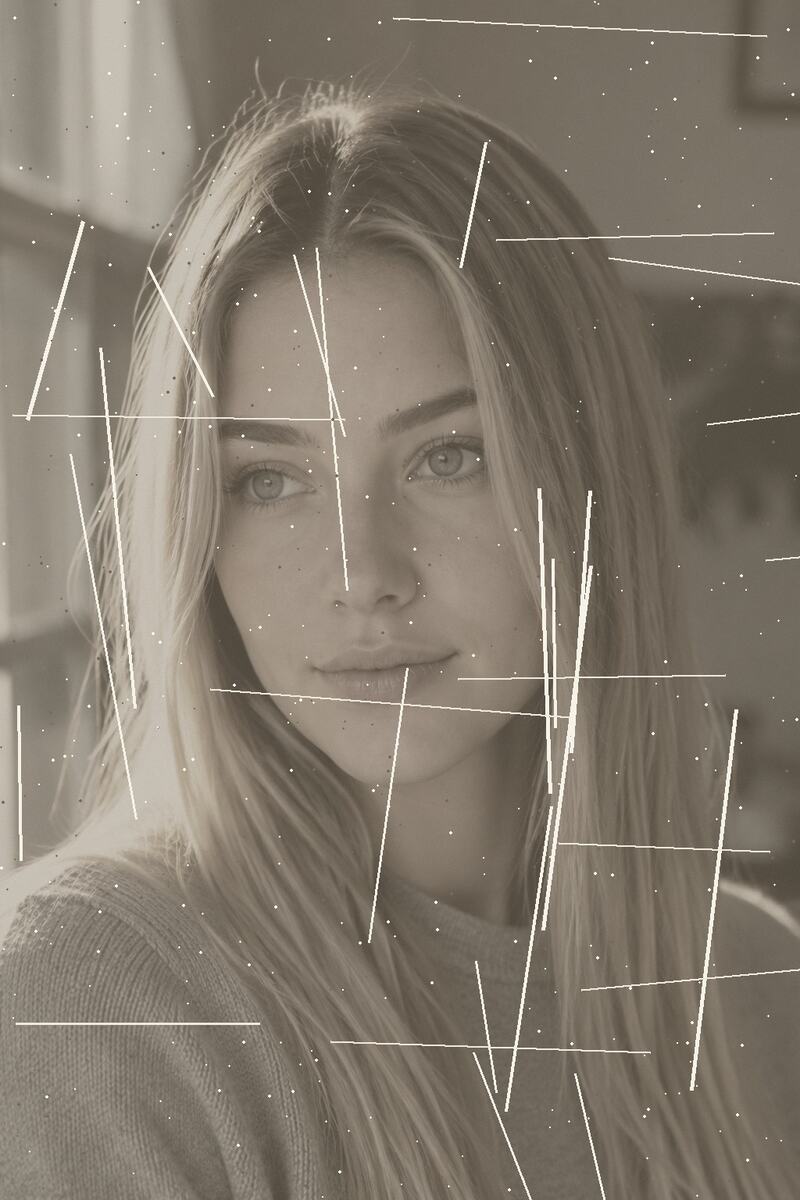
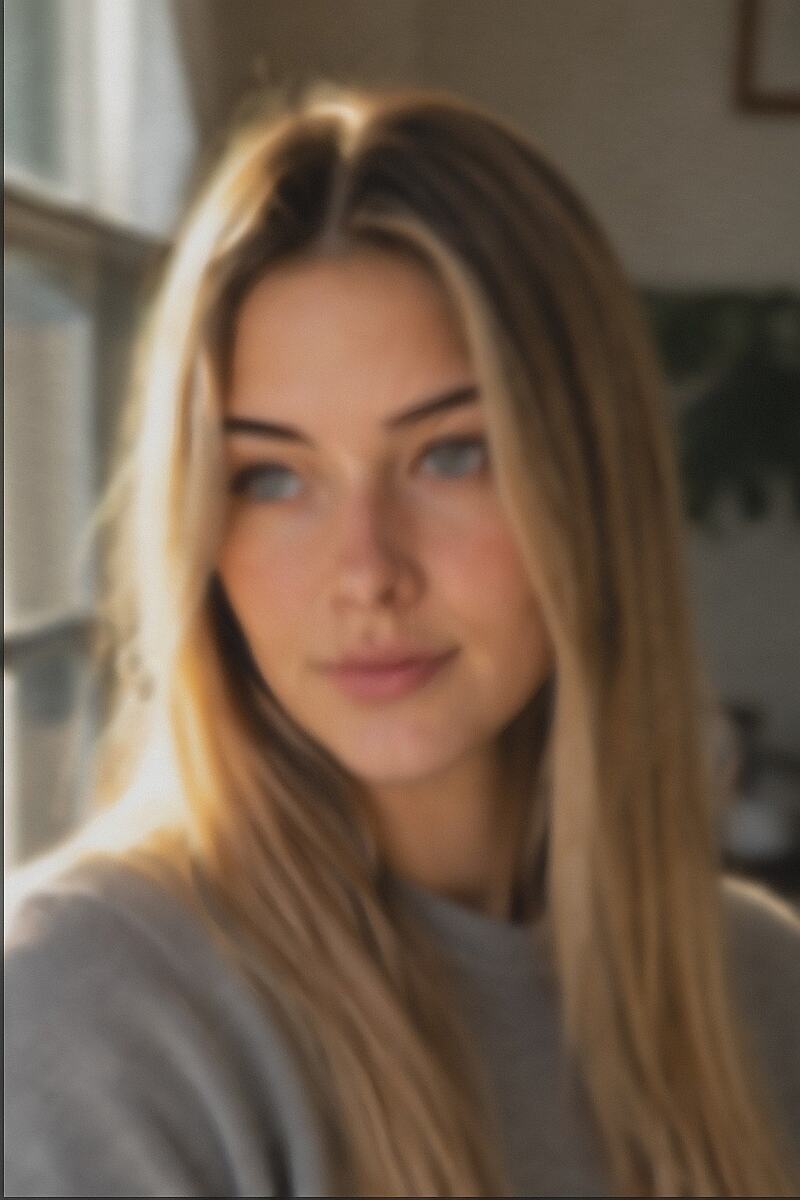
These are example images, not customer photos. The person is a fictional, generated subject, and each pair is real app output.
A faded, scratched grayscale print and the Restore old photo result:
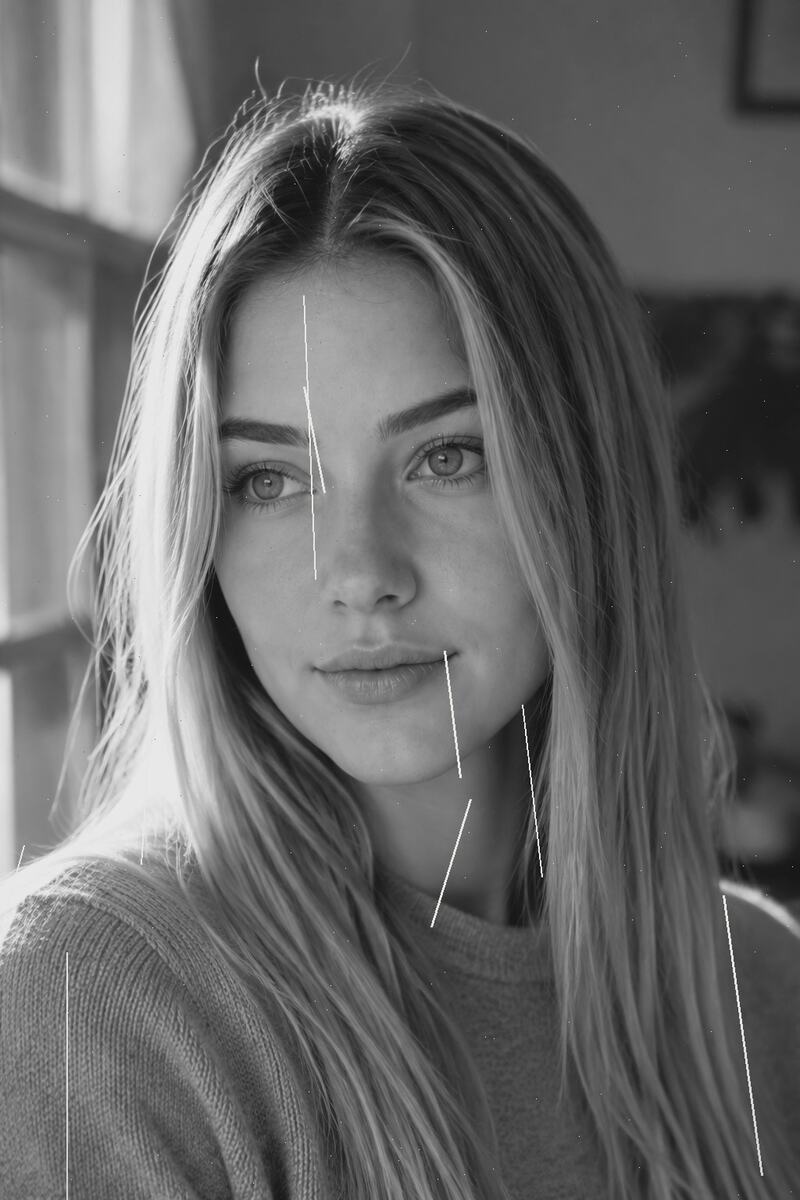

Look at the blue streak in the hair. Color is the app’s guess, and guesses can be wrong. That is why every colorized copy should be compared with the original.
A sepia print with heavy scratches, before and after Fix scratches:

A black and white photo, before and after AI Colorize:

Processing runs on the phone, so the photo is not uploaded for editing, and you don’t need an account. The app also uses the internet for ads, settings, subscriptions and the one-time model download. That matters more than usual for family pictures, which often show people who never agreed to have their faces sent to a server.
A before/after slider shows exactly what changed, and the edit history lets you go back to the original. Use both. Our own rule is to drag the slider across every face before saving.
You get a few free enhancements each day (the default is 3, set remotely and subject to change), and Unblur is free. The restore, scratch, upscale and colorize modes are Premium, which also removes ads and the “Made with Zuriva” mark on saved photos.
A quick fix in your browser
If a scan only needs a lift, try our free photo enhancer first. We should be upfront about what it is: a classic filter demo with no machine learning. It applies a gentle brightness and contrast boost, adds saturation, and runs an unsharp mask to make edges read as sharper. It works on JPG and PNG files, runs entirely in your browser, and never uploads the image.
That makes it good for a faded print that just needs more punch. It won’t remove scratches or rebuild detail. It also saves at up to 1,600 pixels on the long edge, so treat the download as a copy for sharing and keep your full resolution scan as the archive.
For more on the difference between sharpening and real detail, see our guide on how to unblur a photo on Android.
FAQ
How do I restore old photos for free?
Scan the print, then use the free browser enhancer for fading, or Unblur in the app for softness. Scratch repair, 4× upscaling and colorizing are Premium in Zuriva.
Can an app colorize a black and white photo?
Yes, but the colors are predicted, not recorded. Treat the result as an interpretation and keep the original.
Will restoration change faces?
It can. Face restoration rebuilds detail, and from a few blurry pixels it draws a plausible face. Compare each face with the original before sharing.
Is my family photo uploaded?
Not for editing in Zuriva. Processing runs on the phone, apart from a one-time AI model download.
The short version
- Clean the print gently with a soft brush, never canned air.
- Scan at 300 dpi or more, or use a glare-removing phone app.
- Save the untouched scan in two places.
- Fix fading and colour first. Be suspicious of anything that invents detail.
- Compare every result with the original before you share it.