
What it does
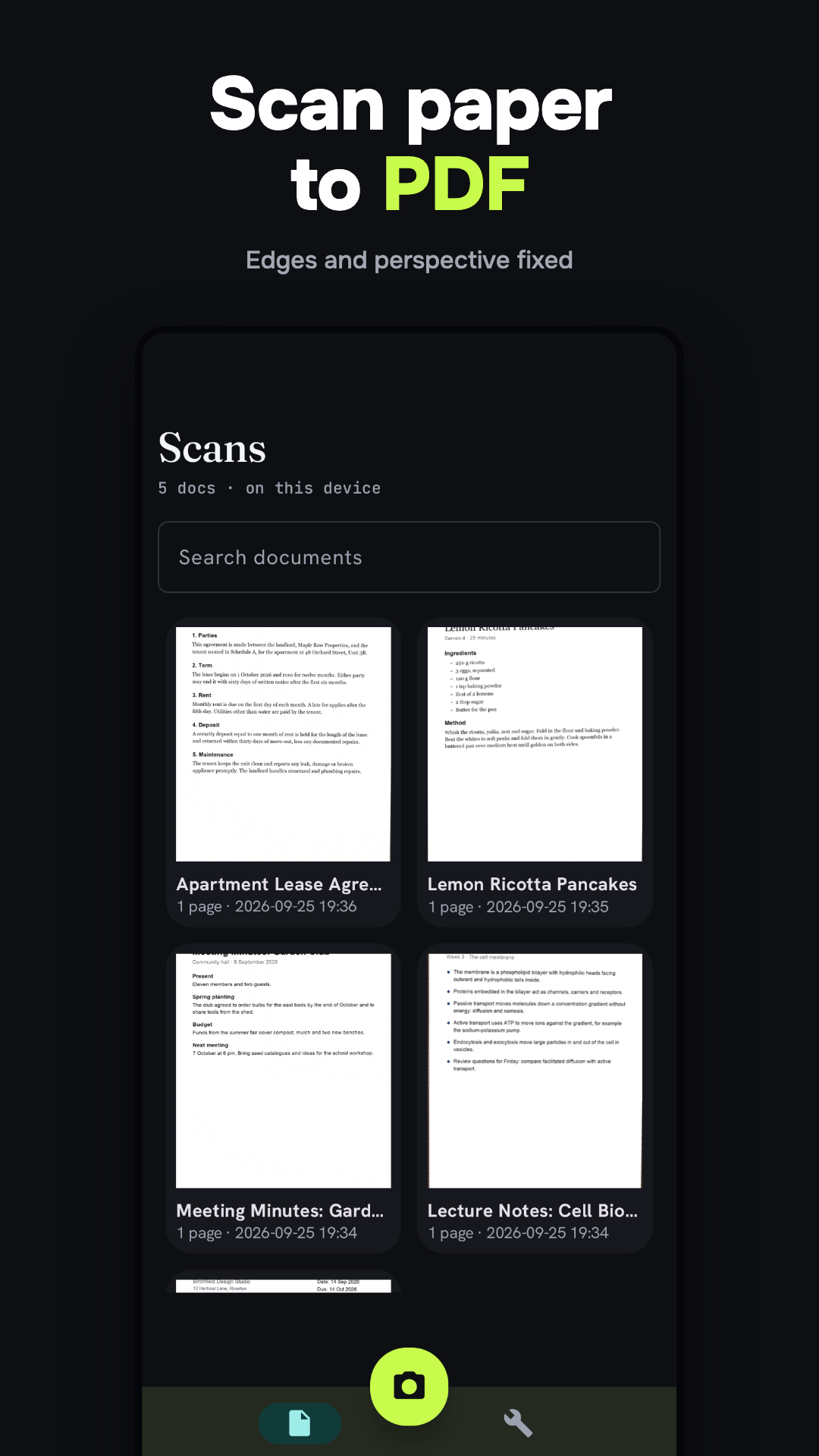
Honest PDF Scanner turns paper into clean, searchable PDFs. Point the camera and the on-device document scanner finds the edges, fixes the perspective and captures several pages in a row. Every PDF is exported without a watermark and you don’t need an account.
Short answer: to scan a document to PDF on Android, open the app, tap Scan, frame the page, tap Save, then share or export the PDF. No watermark, no account. Text recognition runs on your phone when you save, so the PDF is searchable. It reads Latin-alphabet text only.
Scan a document to PDF in four steps
- Tap Scan. Google’s on-device scanner opens (it comes with Play services). Hold the phone over the page. It finds the edges and fixes the perspective, and you can add up to 50 pages in one go. You can also import photos from the gallery inside the scanner.
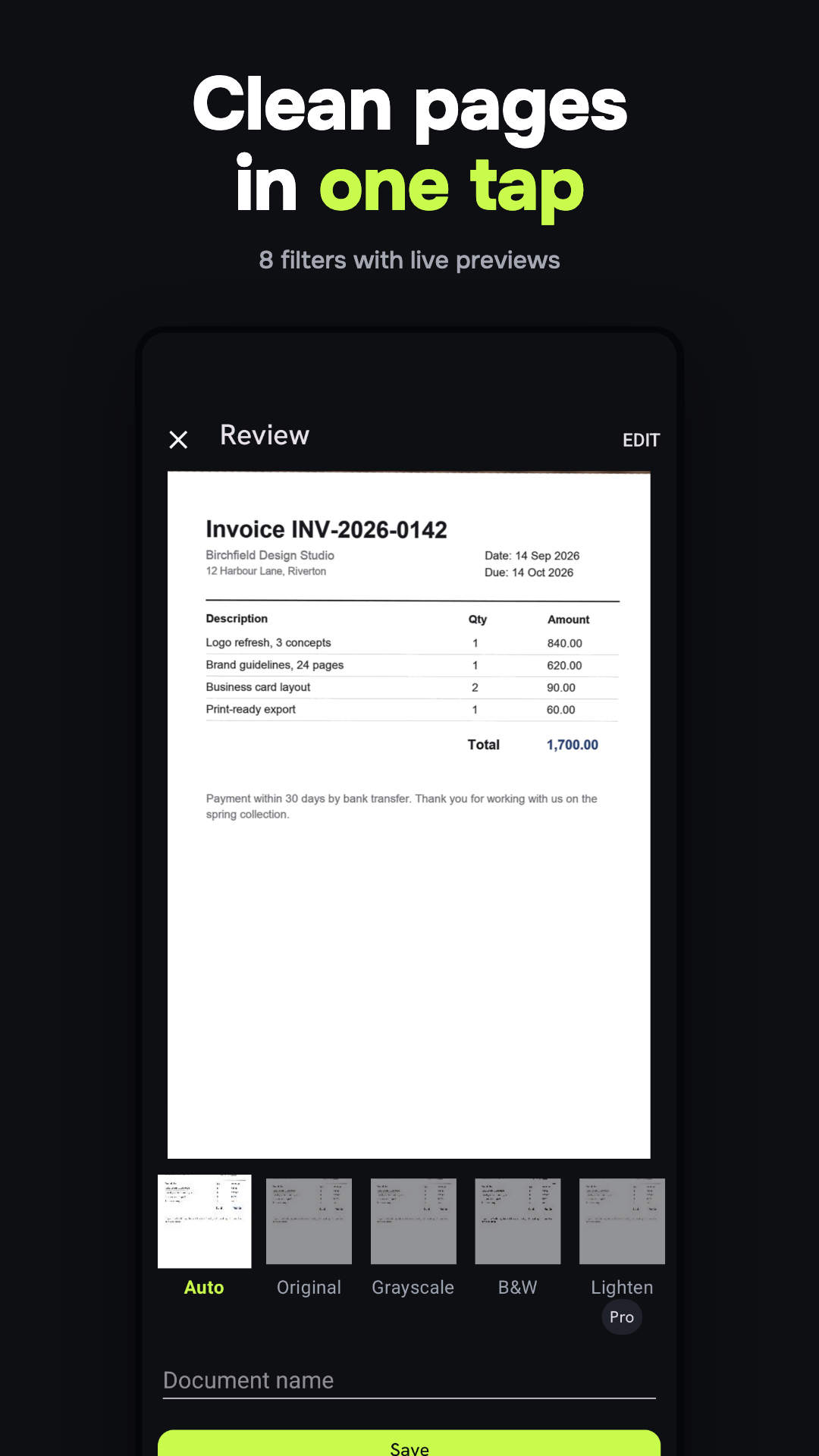
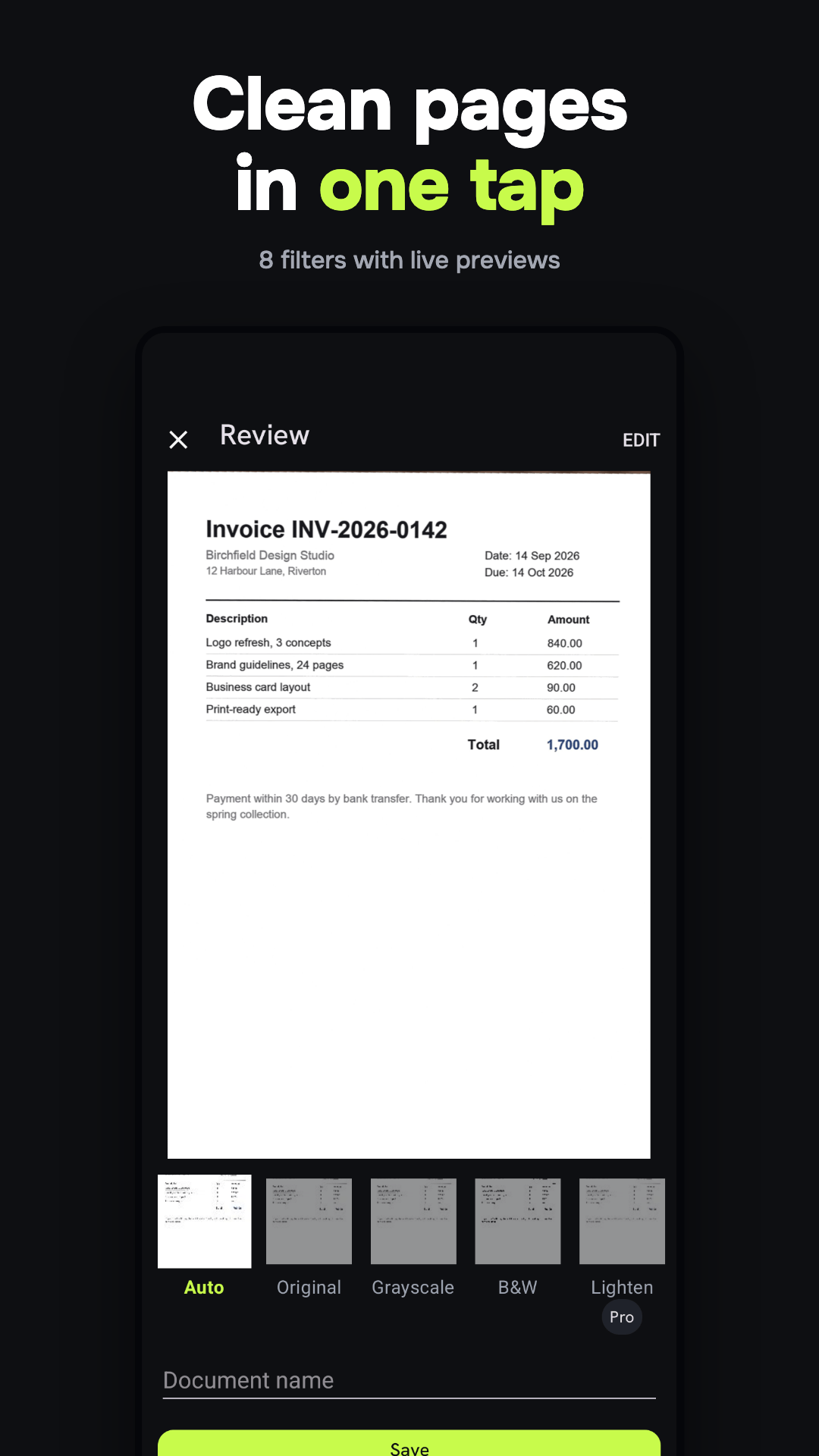
- Check the Review screen. Pick a filter (Auto, Original, Grayscale and B&W are free), use Reorder pages or Delete page if needed, or Retake. Type a name under Document name.
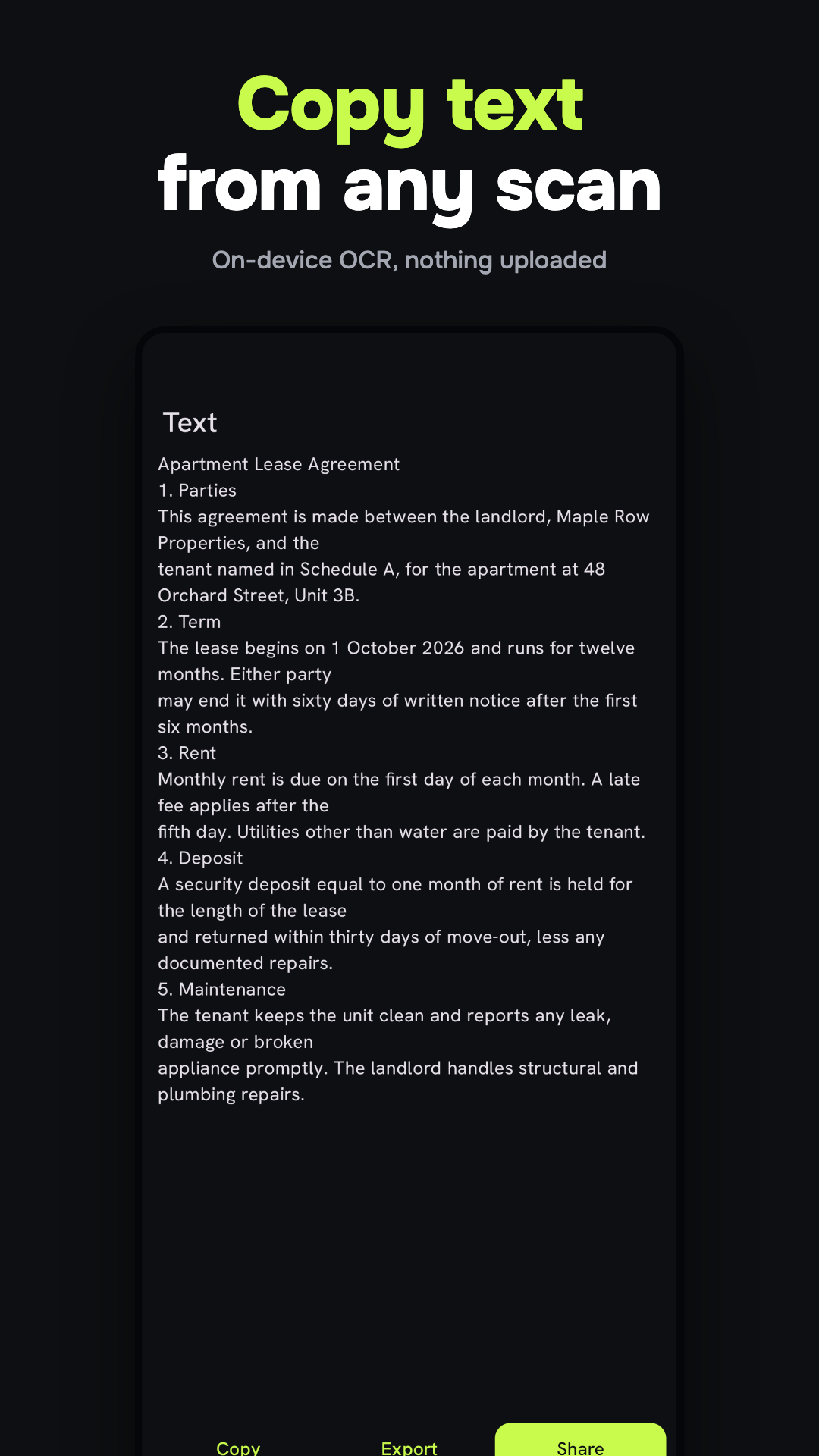
- Tap Save. The app runs text recognition on each page and writes an invisible text layer into the PDF, so you can search and copy text in any PDF viewer.
- Share or export. Open the document and use Share or Export PDF. The file leaves the app with no watermark. Set a password if you bought Pro.
Photos to PDF
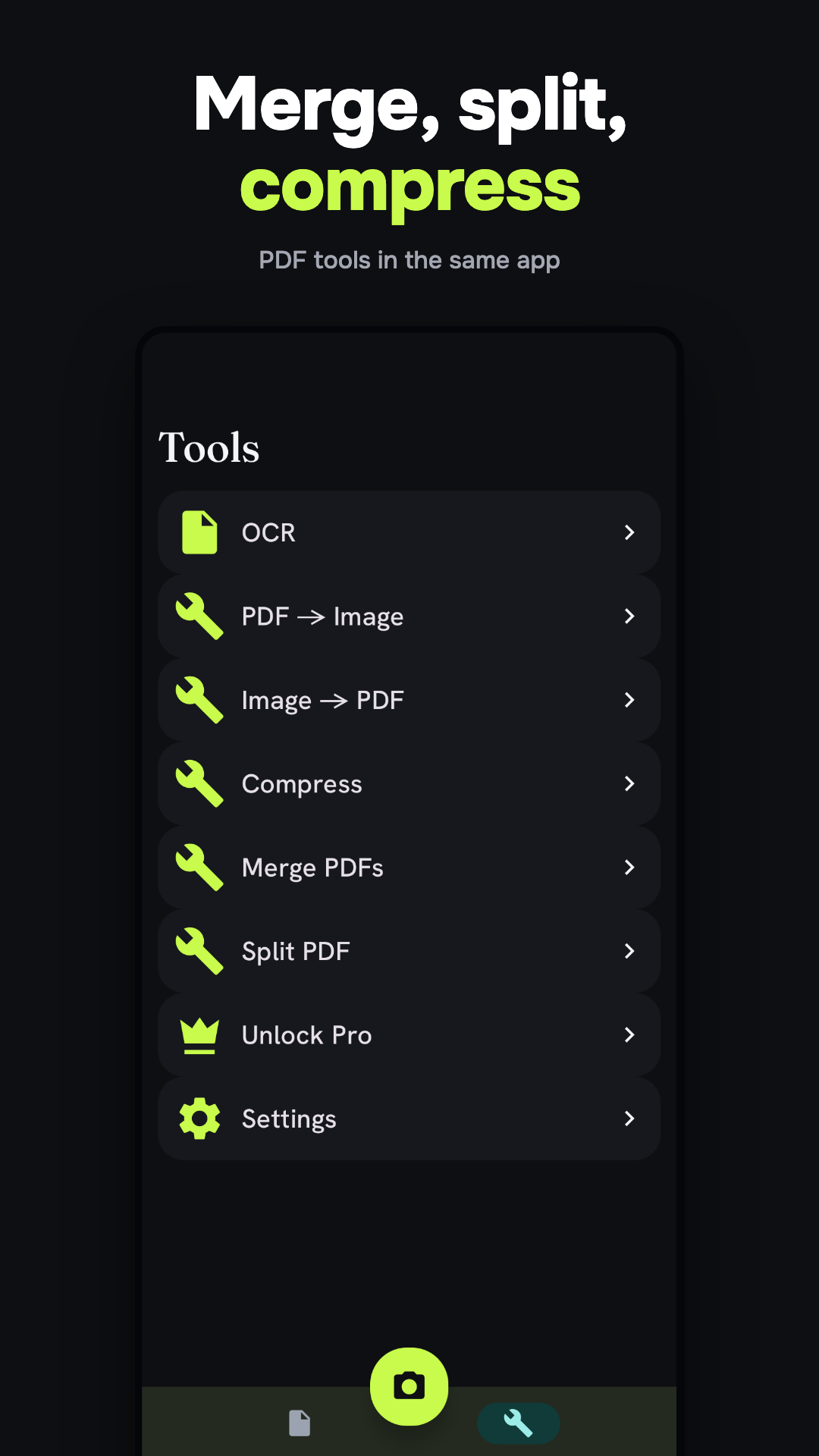
To combine photos you already have, open Tools, tap Image → PDF, tap Pick images, select the photos and tap Save. Page size (Original, A4, Letter or Legal) is set once under Settings, in PDF page size. For a step-by-step walkthrough, see how to put photos into one PDF on Android.
How it compares with your phone’s built-in options
Many Android phones can already scan to PDF with the scanner in Google Drive, and it is free. If you only need a quick scan saved to your Drive, it may be all you need. What this app adds:
- Offline OCR that writes a searchable text layer into the PDF, plus text export to .txt or Word (.docx)
- A page size setting for the PDF (Original, A4, Letter, Legal)
- Compress, merge and split in the same app
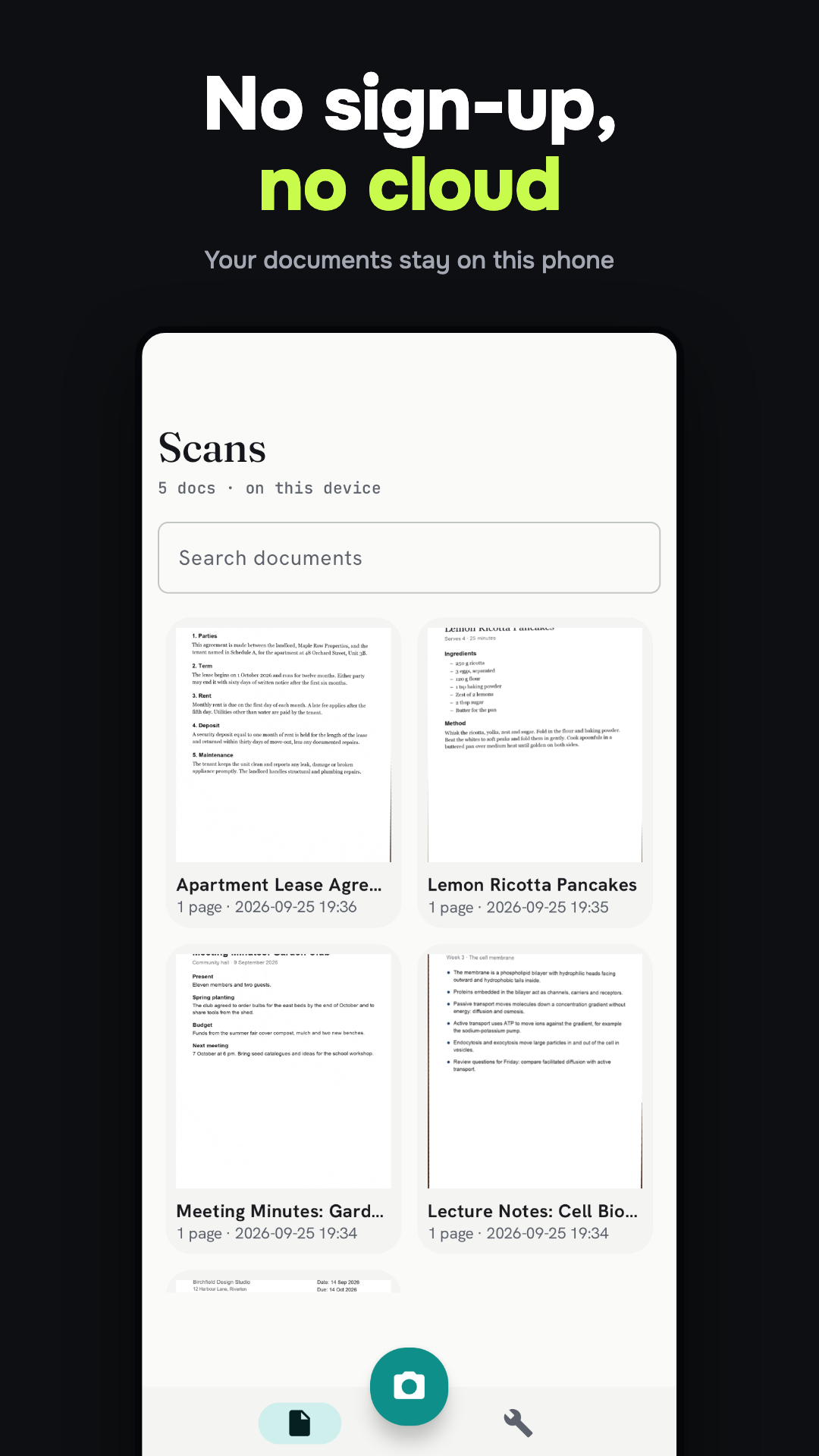
- No account and no cloud storage: documents stay on your phone
Limits
- OCR reads Latin-alphabet text only. Cyrillic, Chinese and Japanese are not recognized.
- The free version shows ads. Pro is a one-time purchase that removes them.
- The scanner needs Google Play services.
- AI tools (rename, summarize, ask a document) send text to a server and have a free monthly cap of 50 pages. Scanning, OCR and export do not.
- Android only.
Highlights
- Automatic scanning: edge detection, perspective correction and multi-page capture
- Eight filters: Auto, Original, Grayscale and B&W are free; four more are in Pro
- Searchable PDFs: on-device OCR adds an invisible text layer when you save
- Copy or export text: copy it, or export as .txt or Word (.docx)
- PDF tools: image to PDF, PDF to image, compress, merge and split
- Your files: search and sort documents, share one or several, light or dark theme
- Free with ads: Pro is a one-time purchase that removes ads
Made for
- Receipts, contracts, forms, homework and notes
- Turning photos into a single tidy PDF
- Anyone who wants a scanner without sign-in or a subscription
Also on Android
Once a scan is saved, AskPDF can summarize it or answer questions about a long document. For codes rather than paper, QR Code Scanner: Link Preview shows where a QR code leads before you open it.