
How to put photos into one PDF on Android, free
Two ways to make one PDF from several photos on Android: the built-in print to PDF route and the Image to PDF tool in Honest PDF Scanner. What each one does, where it falls short, and what to check.
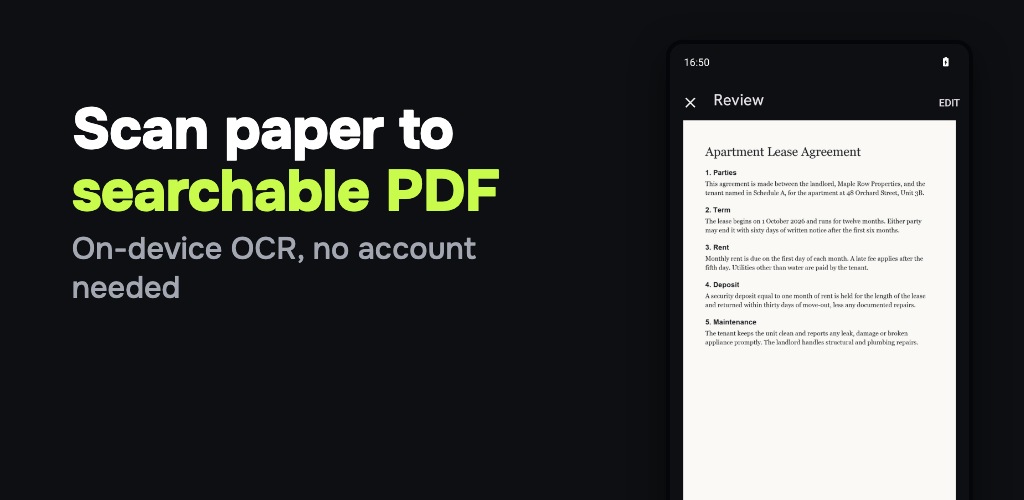
To make one PDF from several photos on Android, pick the photos in a PDF tool, put them in order and save. Your phone can also print a photo to PDF without any extra app, but that route usually produces one file per photo. If you want a single file with several pages, use an app that takes a whole selection at once.
Here are both routes, and where each one stops being convenient.
Get Honest PDF Scanner on Google Play
Method 1: Print, then Save as PDF
Android has a system print dialog with a Save as PDF destination. The exact menus depend on your phone and your gallery app, so treat these steps as a guide:
- Open the photo in your gallery or photo app.
- Open the menu and look for Print.
- In the print dialog, set the destination to Save as PDF.
- Choose a paper size if the dialog offers it, then save the file.
This is fine for one photo, and it needs no install. The catch is that most gallery apps send a single photo to the print dialog at a time, so you end up with one PDF per photo. Some apps let you select several photos before printing, which gives one multi-page file. Check yours. If it does not, you will need a second tool to merge the files afterwards.
Method 2: Image to PDF in Honest PDF Scanner
Honest PDF Scanner has an Image to PDF tool that takes many photos at once.
- Open the app and tap Tools in the bottom bar.
- Tap Image → PDF.
- Tap Pick images and select the photos in the system picker.
- The screen shows how many images are selected. Tap Save.
- The finished PDF opens in the share sheet, so you can send it or save it from there.
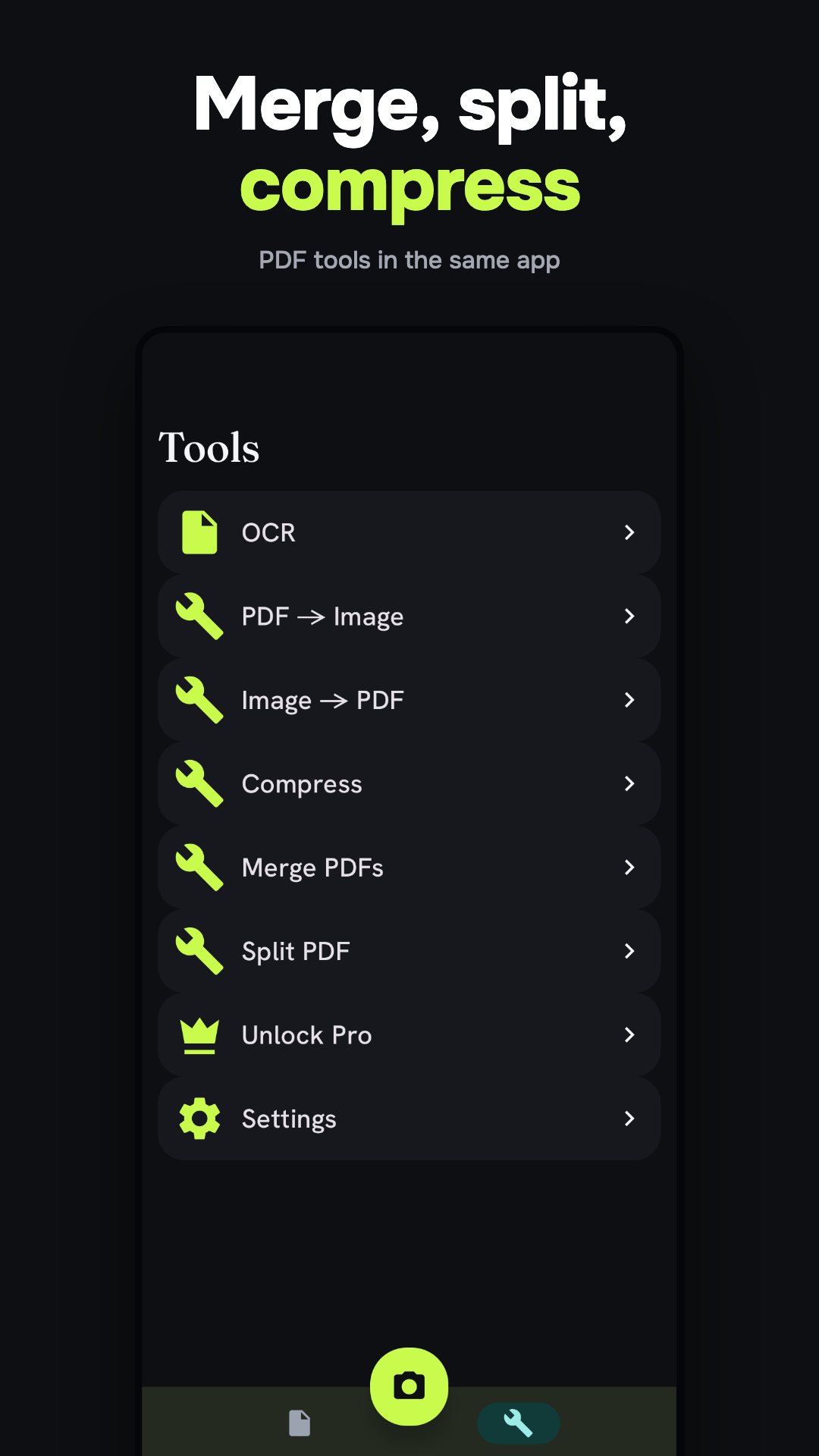
Things worth knowing about this tool:
- Page order follows the order in which the picker returns your photos. The tool itself has no reorder screen. Check the result, and if the order is wrong, redo it selecting the photos in the order you want, or use the scanner’s import instead (below).
- Page size is not chosen on this screen. It is a global setting under Settings, PDF page size: Original, A4, Letter or Legal. With a paper size, each photo is scaled to fit the page and centered, not stretched. With Original, each page matches its photo.
- Rotation is handled for you. Photos stored with a rotation flag are turned upright before they go into the PDF.
- File size depends on your photos. Pages are stored as JPEG. If the PDF is too big to send, open Tools, then Compress, and move the slider toward Smaller file.
- No watermark and no account. The app is free with ads.
I did not measure a size for a standard set of photos, because it varies with resolution and how detailed each photo is. Run Compress on your own file and the app shows the before and after sizes.
If you need to reorder pages
The scanner has a Review screen with Reorder pages. Tap Scan, use the gallery import inside Google’s scanner to add your photos, then reorder, delete or retake pages before you tap Save. As a bonus, this route runs text recognition when you save, so the PDF becomes searchable if the photos contain text. Image to PDF does not add a text layer.
Limits
- Image to PDF has no reorder screen and no quality slider. Use the scanner route for order and Compress for size.
- Text recognition works for Latin-alphabet text only.
- The free version shows ads. Pro is a one-time purchase that removes them.
- The scanner opens through Google Play services.
- Android only.
Which route to pick
Use the built-in print route for a single photo. Use Image to PDF when you have a stack of photos and want one file. Use the scanner when the photos are of paper and you want clean pages, the right order and searchable text. If you start from paper rather than photos, see how to scan a document to PDF on Android.