
Dope Capybara · · updated
Convert Horizontal Video to Vertical on Android (9:16)
Turn a landscape video into a 9:16 vertical clip on Android in five steps: crop to fill, or fit the whole frame. Free 1080p export, no watermark.
To convert a horizontal video to vertical on Android, open it in a video cropper, pick the 9:16 ratio, drag and pinch the picture so your subject sits inside the frame, then export. A 9:16 crop keeps only about a third of a 16:9 frame’s width, so you choose which third. If you need the whole scene, use Fit instead of Crop and accept bars around the video.
Get Cropzen on Google Play to follow along. It is free for 1080p export, with no watermark and no account.
Crop, fit, or stretch?
Landscape to portrait is a shape change, and a shape change forces a trade.
| Method | What happens | When to use it |
|---|---|---|
| Crop to 9:16 | The sides are removed; the remaining picture fills the frame. | One person or subject fits inside a narrow area. |
| Fit inside a 9:16 frame | The whole picture stays, with bars above and below. | A group, slide or wide scene must stay visible. |
| Stretch to 9:16 | Width and height change independently, distorting the picture. | Almost never. People and objects look wrong. |
A plain crop cannot keep the full width of a landscape shot and also fill a portrait frame. For a padding example with numbers, see how to resize a video without cropping.
What a 1920 x 1080 clip becomes
Here is the pixel math for a common phone clip, 1920 x 1080 (16:9).
Crop to 9:16. The crop keeps the full 1080-pixel height. The width follows from the ratio: 1080 x 9 / 16 = 607.5, so about 608 pixels. That is 608 / 1920 = 31.6% of the original width. In Cropzen the free 1080p export never upscales, so the file comes out at about 608 x 1080. It is a narrow picture, well below 1080 x 1920, and it will look softer than a full-resolution vertical clip on a big screen.
Fit in 9:16. The whole 1920 px width is scaled to 1080 px, a factor of 0.5625. The picture is then 1080 x 607.5, about 608 px tall, in a 1080 x 1920 frame. That leaves about 1312 px of bars, roughly 656 above and 656 below. You keep everything, but the picture uses only about 32% of the frame’s height.
Starting from 4K. A 3840 x 2160 clip cropped to 9:16 is about 1215 x 2160. Free export caps the short edge at 1080 px, so it comes out near 1080 x 1920 without a Pro purchase. More source pixels mean a sharper vertical crop.
A resolution setting cannot add detail that the crop threw away. If the result looks soft, use less zoom, or start from a higher-resolution original.
Steps in Cropzen
The Cropzen app is listed on Google Play as Crop Video Editor: Trim & Cut. It does everything on the phone, so the clip is not uploaded anywhere.
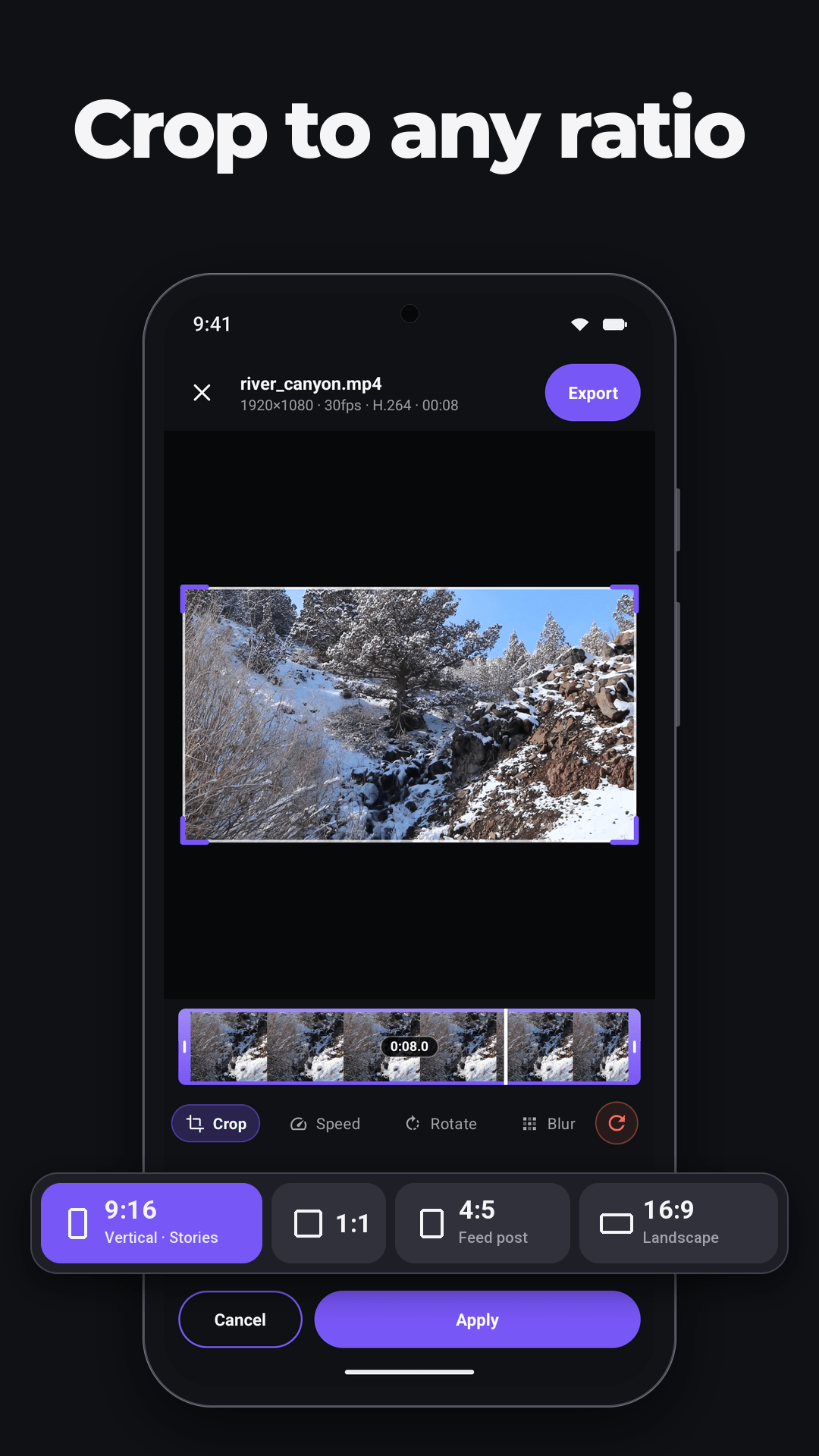
- Tap Pick video on the home screen and choose the clip from your gallery. Use the original camera file where you can, not a copy compressed by a chat app.
- Open the Crop tool and tap the 9:16 chip (labelled Vertical, Stories). The crop frame turns vertical.
- Position the picture. Drag the video under the frame and pinch to zoom until your subject is inside it. Use only as much zoom as the shot needs.
- Want the whole scene instead? Tap Fit (hint: Whole video) next to the ratio chips. The whole frame stays visible with bars around the video.
- Tap Apply, then Export. Choose a quality in the export sheet (1080p is free) and save. Watch the saved file once before you post it, and keep the original.
To shorten the clip first, use the Trim tool: it lets you set an exact start and end, with one-frame steps. Cropping changes what is visible; trimming changes how long it runs.
What Cropzen does not do
- It is a manual crop. The frame stays where you put it for the whole clip. There is no AI subject tracking and no automatic reframing, so a subject that walks across the shot can leave the frame. Pick a shorter section, or use Fit.
- It is Android only. There is no iPhone version.
- The free plan shows ads. Pro removes them and adds 4K export and batch crop, as covered in the free vs Pro table.
- It is not a timeline editor: no captions, effects or multi-track editing.
Why a vertical crop can look soft
Keeping full height, the 9:16 crop of a 16:9 frame is (9 / 16) / (16 / 9) = 0.316 of the width. On a 1920 x 1080 source that is 608 pixels across, and it was never more than 608 pixels of captured detail. Stretching it to 1080 x 1920 in another app only enlarges those pixels.
A crop is also not a lossless cut. Some trims can copy the encoded video without re-encoding it, but changing the visible area needs the frames to be processed and encoded again. Android’s media transformation documentation describes the difference.
Does every YouTube Short have to be 9:16?
No. YouTube accepts square or vertical videos up to three minutes as Shorts under its current upload rules. See YouTube’s Shorts eligibility guidance. If a wide group shot loses someone in a 9:16 crop, a 1:1 crop may keep more of the scene. Cropzen has 1:1 and 4:5 presets as well.
Check the destination before you crop. The YouTube Shorts size page and the other video size guides list the pixel sizes and safe zones. To work out the crop for any source and ratio, use the aspect ratio calculator.
Can you crop several videos at once?
Yes, with Cropzen Pro. Batch crop applies one aspect ratio to several clips. A shared ratio does not give a shared composition, though: a face on the left of one clip and on the right of another need separate attention, so check each result.
Try it
Open the clip, tap 9:16, position it, export. Download Cropzen from Google Play, or read the full app page for the free and Pro details.